How to Change MT4’s Time Frames
Metatrader 4 (MT4) charts are the industry standard charting platform used widely with most Forex brokers.
MT4 offers a fantastic platform that is both easy to use and quick to pick up and learn, but whilst there are many time frames in-built to the standard MT4 stock platform, one of the drawbacks is that some of the other time frames that traders would really like to trade are not easily available with the in-built platform.
Time frames such as 2hr, 8hr or 2 day which are really quality time frames, especially for price action traders are not available and having these time frames as an option would make a big bonus and open up a lot more potential trading opportunities in the same markets already being traded.
Changing MT4 Candle Time Frame
To fix this problem traders can use an indicator or EA that is simply installed into their MT4 platform which allows traders to change the time frame into anything they would like.
This indicator works by allowing the trader to go into their charts and open an “off-line” chart. This new chart is not actually off-line and it is very important that this point is made. For as long as the trader continues to keep the original indicator running, the new off-line chart will continue to update just like any other real live time chart even though it says it is off-line.
As soon as the trader closes the indicator on the original chart, it does not matter if the new time frame chart is open or not, it will stop updating because the indicator has been closed.
How to Download the Change Time Frames Indicator
Since the update of MT4 to build 600, there is a new way to upload indicators. Previously indicators were uploaded by saving them straight to the MT4’s indicator file, however it is done slightly different now so please follow the instructions below carefully and if you have any questions, then please put them in the comments below with a correct email address so you will be notified when you receive a reply and also so that if I need to send you a longer reply I can just email it to you (your email address is not published on the website).
Important Note: Make sure you are using the correct New York Close 5 Day Charts. If you are unsure what these are or if you need to download a free demo platform see here; Using the Correct New York Close 5 Day MT4 Price Action Charts
1: First; save the Change Time Frame indicator to your computer . When you click on the link it will ask you where you want to save it and you just need to save it to somewhere on your computer where you can get to it easily.
– Save/Download the Change Time Frame Indicator
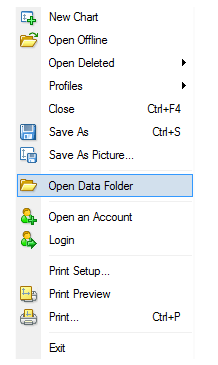
2: Open your MT4 platform and hit the “file”, then “Open Data Folder” button as the picture shows below;
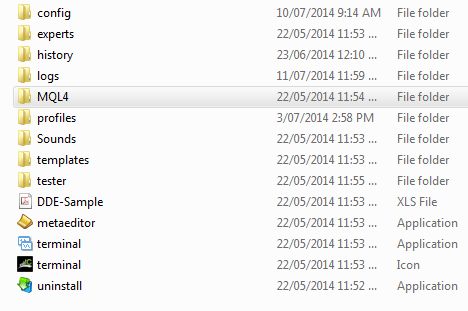
3: This will open up your MT4’s files on your computer. Leave these open as you will come back to them shortly. You need to then go to where you saved the Change Time Frame Indicator on your computer. The indicator will be called “P4L_PeriodCon (1).ex4”. Click on this indicator, then right click and copy it.
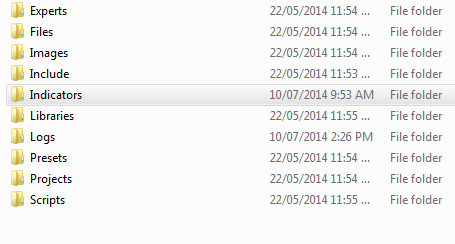
4: Go back to the open MT4’s files. In here click on the MQL4 file and then click into the indicators file. This is where all the indicators are stored for MT4 as the third picture below shows. NOTE: Some MT4’s will only have a MLQ4 file and will not have an indicators to then click into. Don’t worry if there is no indicators file. See pictures below;
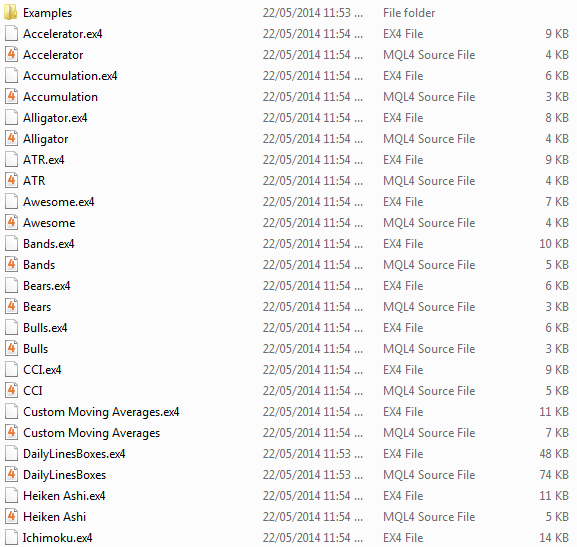
5: Once in the indicators file, right click and paste the indicator with the rest of the other indicators. This will paste the new indicator into MT4.
6: You will now need to close and re-open your MT4 for this new indicator to appear in your indicator files.
7: Your new Change Time Frame Indicator is working and this is now how all new indicator uploads will work for MT4.
How to Use the Change Time Frames Indicator
Using the Time Change Indicator is quite simple once you know how, but there is a learning curve like most things. After following the above instructions to upload the new indicator, please make sure you close and re-open your MT4 so it is ready to use.
1: Now that your MT4 has been re-opened you need to decide what time frame you wish to change because in the indicator under the “inputs” and “Period Multiplier” section you will determine the time frame of the chart.
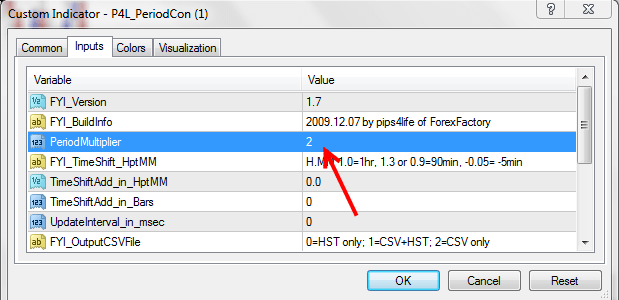
For example; if you open a 1hr chart and in the period multiplier section you put a 2 this will make a 2hr chart because 2 x 1hr = 2hr. If you opened a 1 day chart and put 3 in the period multiplier section, then you would come out with a 3 day chart because 1 day x 3 = 3 days. Of course there are other ways to get the same charts.
For example; to get a 2 day chart you could either open a 1 day chart and put 2 in the period multiplier section to make a 2 day chart or you could open a 1hr chart and put 48 in the period multiplier because both would make a 2 day chart.
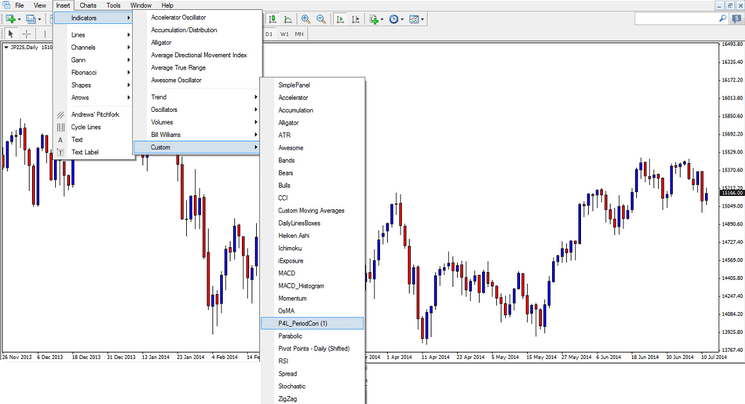
2: Now that you have chosen the pair and time frame you wish to make, in your MT4 platform select; “Insert” – “Indicators” – “Custom” and then the Time Change Indicator which will be called “P4L_PeriodCon (1)” just as the picture shows below;
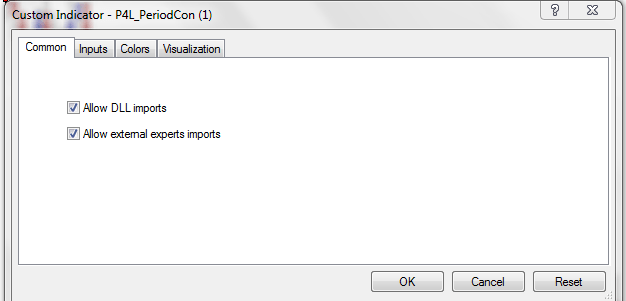
3: With the indicator open please first make sure that under the “Common” box that “Allow DLL imports” is ticked as the picture shows below;
4: Under the “Inputs” and then in the “Period Multiplier” section please input the number to make the time frame you wish to form as explained above in point one. Once done click “Okay”. The picture shows this below;
5: To open your new time frame chart click the MT4’s; “File” – “Open Off-line”. This will open all your off-line charts. Please select the new time frame chart that you have just created.
As explained previously in this article; this new off-line chart is NOT off-line and will continue to update for as long as you do not go back to the original chart that you added the indicator to and delete it. As soon as you delete the indicator the new time frame will stop updating.
6: You are free to do as you would normally do with your other charts such as change the colours and add levels etc., One thing you cannot do is go into the chart properties and take the chart from being an offline chart. This chart is set to being offline and it will continue to update and work as normal whilst the indicator is running and it is set to off-line so make sure you do not take this setting off.
Making the Very Most of the Change Time Frame Indicator
With this indicator pretty much any time frame chart can be created, but that is not to say that any chart should be created. Traders need to think about how they should use this tool. Just because traders can all of a sudden start trading a heap more charts with this indicator, does not necessarily mean that they should be.
Traders need to be super smart about how they go about using this indicator and their approach to the markets and understand that more time frames can either help a trader who has discipline and is hunting the best trades or really hurt a trader who is using it as another way to make far too many trades and as a way of over-trading.
As I discuss in the trading lesson The Ultimate Guide to Price Action Support & Resistance traders need to think wisely about how they set up their charts and use their time. Traders should not be going through every single pair at the 4hr candles  close looking to see if a price action signal has formed and, then again the 8hr charts to see if a price action signal has formed because not only does this take up a huge amount of time, but once a trader does find a signal, they then have to work out if that trigger signal is from a key level anyway.
What traders are far better of doing that optimises their time and can really put this indicator to the best of it’s potential use is first marking up their charts with their key levels.
When price then moves into a key level that the trader wants to make a trade from, the trader then starts to hunt for trades on their charts.
This is when the trader can start clicking through their 4hr charts and using the indicator to make an 8hr chart to see if there is a high probability trigger signal at the key daily level. This cuts down a huge amount of wasted time where traders are going through chart after chart where price is nowhere near a key trading level and it also ensures that when traders are hunting for high probability trigger signals, they are hunting for them from really key levels that have already been pre-marked.
Recap
Hardly any brokers are still yet to make the transfer over to MT5 even though they do have the capability and could have started the move by now and a major reason for that is that MT4 is so popular. MT5 is not a big difference at all to MT4 and whilst it does have a few extra in-built time frames that do not require indicators such as the 2hr and 8hr charts, it still does not have charts such as the 2 day.
With this indicator traders have the ability to make any time frame they want, but they must also realise that whilst this indicator now opens up a lot more trading opportunities and time frames, the market is not there to be sucked into and to be stared at all day long. Traders need to be in and out when the best opportunities arise at their key levels, rather than just making random extra time frames and looking for excuses to make any trade.
If you have any questions or want any help with getting the indicator working just add your comments in the section below.
Safe trading,
Johnathon